Guides
Smart home privacy guide: a household checklist
A smart home privacy guide as a household checklist: inventory devices, set recording and voice history limits, control accounts and guests, plan disposal.
What to take away
- A smart device is a bundlesensors, an app, an account, your home network, a vendor cloud, and the other people in the house.
- Decide what may leave the home before you mount a camera, microphone, lock, or sensor.
- Give each resident their own account or role whenever the product allows it.
- Recording, retention, deletion, live view, alerts, and sharing are six separate settings, not one privacy switch.
- Firmware and account support must last as long as the device stays on your wall.
- Before a sale, donation, or return, strip accounts, integrations, subscriptions, and stored data.
This smart home privacy guide is built as a checklist a household can work through device by device. Each section ends in steps you can tick off. Start with one distinction: a connected bulb and a camera are not the same privacy decision. Ask what the device senses, what it infers, what it stores, what it sends, and what it can operate.
Then note who can reach it:
Who can reach it
- someone in the room
- someone with the app
- someone with the web login
- someone on your network
- a linked service
- vendor support
Inventory the whole product, not the box
A single carton can hold one object while the working product spans seven parts. Write each one down before installation.
| Component | What to record |
|---|
Inventory the whole product
- Devicemodel, serial, cameras, microphones, radios, storage
- Mobile apppermissions and background behavior
- Accountowner, recovery, activity history access
- Networkinternet, local access, or both
- Cloud servicewhat is processed or kept
- Integrationassistants, hubs, routines, partner services
- Peopleresidents, guests, installers, administrators
Record each part on one page per device, so a later review does not depend on memory:
- Device and sensorsmodel, firmware version, what it senses, and where the data goes.
- Companion appthe permissions it asks for, background access, and the account it signs into.
- Account ownerwho owns it, the recovery email and phone number, and the active sessions.
- Network and routerthe network it joins, whether it sits on a guest or separate segment, and who holds the router password.
- Vendor cloudwhich services are switched on, the retention setting, and the export and delete paths.
- Linked serviceswhat the device shares with, and what those services can trigger.
- Household memberswho has admin rights, who has view-only access, and who has left.
Inventory checklist:
- Record all seven parts for every device before it goes on the network.
- Log the account owner, installation date, and the support page that states the update period.
- Add a review date. When the vendor stops publishing firmware, the device stops being maintainable, whatever the app still shows.
Classify the capability, not the marketing label
NIST's consumer IoT product profile lists cybersecurity capabilities for consumer IoT products:
- asset identification
- product configuration
- data protection
- interface access control
- software updates
- awareness of product state
- documentation
- information reception
Use those eight categories as interview questions for any product you are considering. A household can start with these:
- Can I see which device this is and what software it runs?
- Can I change its settings?
- Does it protect the data it stores and sends?
- Can I limit who can reach its app, web login, and other interfaces?
- Does it receive software updates, and for how long?
- Is its documentation clear enough to answer these questions?
A marketing label alone does not establish how any of this works.
Capabilities that change exposure
- Records audio or video
- Infers presence, sleep, movement, or routine
- Unlocks a door or disarms an alarm
- Displays private media or calendars
- Recognizes voices or faces
- Contacts emergency or monitoring service
- Reveals whether anyone is home
This publication does not certify devices and cannot promise privacy in a particular home.
Separate local functions from cloud functions
For each feature, find out where it runs and note it on the device page:
Local vs cloud functions
Local
- Live view
- On device
- Event detection
- On device
- Recognition
- On device
- Storage
- Local disk
- Automation
- On device
- Remote access
- Local network
Cloud
- Live view
- Via vendor
- Event detection
- On servers
- Recognition
- On servers
- Storage
- Vendor servers
- Automation
- Via vendor
- Remote access
- Internet path
Local is not automatically private and cloud is not automatically unsafe. Local storage can be read by anyone who reaches the device or the disk. Cloud storage can add authentication, logs, and managed updates while creating another data holder and a remote path in. Write down which design you actually have.
Local options are real: many cameras accept a microSD card, work with a local network video recorder (NVR), or sync to a base station that keeps clips in the home. The trade-offs are theft of the drive, weaker remote access, and backup and update duties you now own. Apple's HomeKit Secure Video takes a middle path, keeping camera clips in iCloud under your Apple account rather than on a drive in the house.
Control cameras and microphones
Camera and microphone checklist:
- Point cameras only where you have a stated reason. Bedrooms, bathrooms, work screens, a neighbor's property, and public space need a legitimate need and the rules that apply there before a lens goes up.
- Check reflections, windows, audio pickup, night vision, and how far pan and zoom reach.
- Learn the difference between a software toggle, a physical shutter, a microphone switch, cutting power, and pulling the network cable.
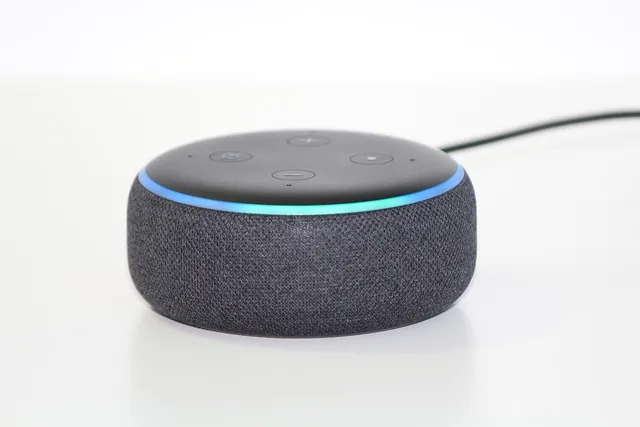
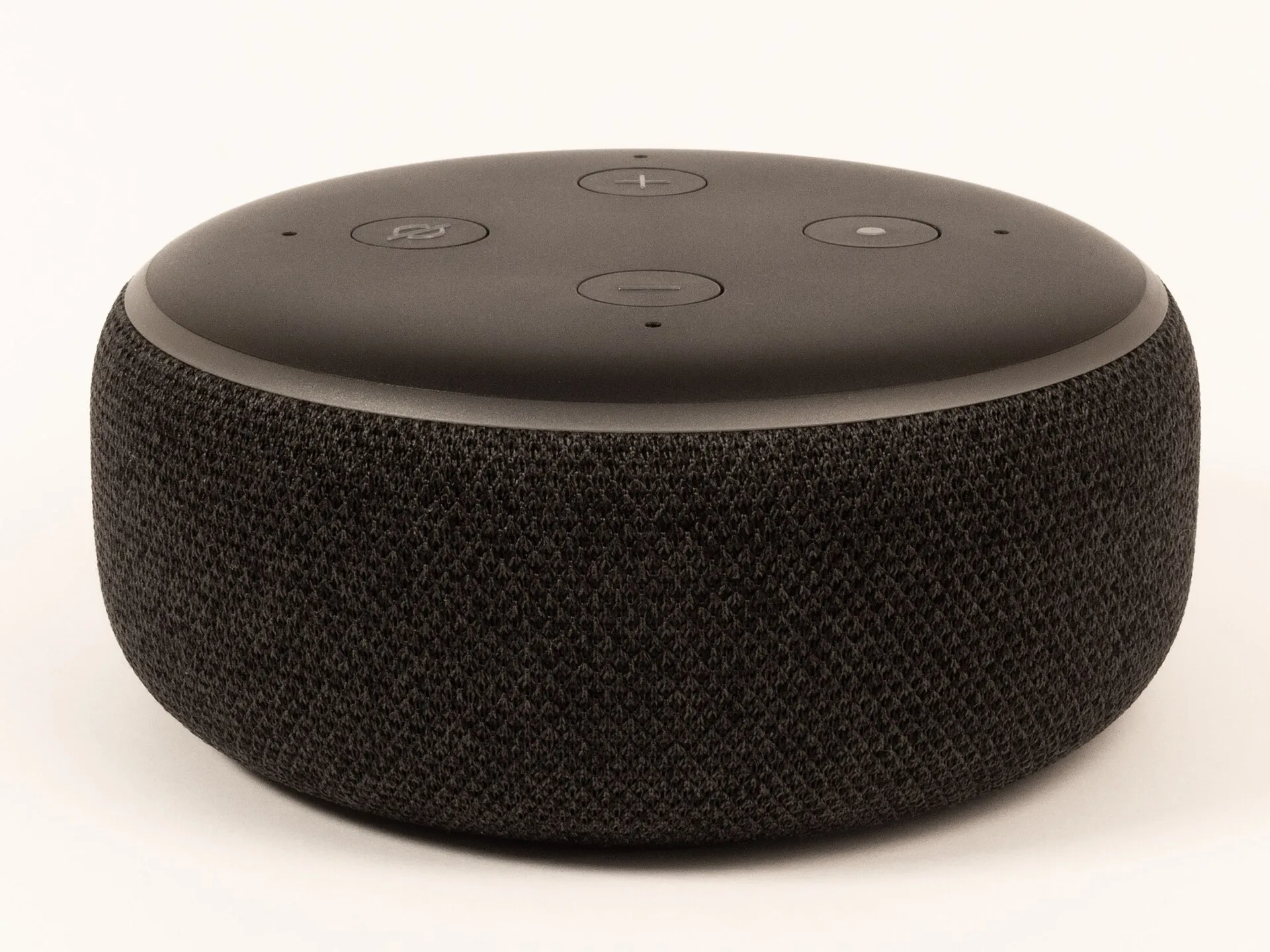
- On a voice assistant, look for a physical button or switch that stops the device from listening, as the Federal Trade Commission's consumer advice suggests, and turn on light or sound alerts that show when it is listening.
- Test the indicator light. A dark light proves nothing unless the documentation says it does.
Manage recordings and retention
For each recording type, answer six questions: what triggers it, where it is stored, how long it is kept, who can access it, how to delete it, and whether copies remain in linked services.
Six questions for every recording
- What triggers it?
- Does it include pre-event footage or audio?
- Where is it stored?
- Who can watch, download, share, or delete it?
- What is the default retention period, and what did you choose?
- What survives an account, device, or subscription change?
Recording checklist:
- Check whether voice recordings are stored permanently by default. The FTC notes that you can usually set how long the manufacturer stores voice recordings, and may be able to set them to delete automatically.
- Read the privacy policy on who can listen to recordings, and opt out of human review where the settings allow it.
- Keep the shortest period that serves the stated purpose for clips, snapshots, and alerts.
- Review saved clips, voice history, snapshots, and alerts one by one, then transcripts and exported files.
- Remember that deleting a clip in the app may leave a downloaded copy or a record inside an integrated service, and check those too.
Give people proportionate access
Never hand out the primary password as a substitute for membership controls. Individual accounts make departures, permissions, and reviews easier to run.
Who gets administrative access?
Does this person add devices, invite members, change history settings, or touch security controls?
Grant administrative power
Give individual account with limited permissions
Access checklist:
- Give admin rights only to the people who add devices, invite members, change history settings, or touch security controls.
- Give everyone else their own member or view-only access.
- Add a PIN or turn off voice ordering so visitors or children cannot buy things by voice, and use a guest mode where the assistant offers one.
- Review which accounts, such as email or shopping, are linked to the voice assistant, and unlink the ones the household does not need.
- Tell residents and regular visitors what sensors exist, what gets recorded, where the cameras point, and how to raise a concern.
Household notice does not settle every consent or legal question. In the United States, audio and video recording rules come from state law, and some states require every party's consent for audio, so check your own state's rule before you switch on audio recording.
Consumer privacy statutes such as the California Consumer Privacy Act reach some device and app data. Rental, employment, care, and shared-housing settings may need formal review, and a licensed lawyer is the right first stop; complaints about how a device or app handles your data go to the Federal Trade Commission or your state attorney general.
Maintain the account and the network
Account and network checklist:
- Use unique credentials and strong authentication on the device account. The FTC advises a long password of at least 15 characters that you have not used on another account.
- Turn on multi-factor authentication where the account offers it, so a stolen password alone does not open it.
- Protect the recovery email and phone number, because they are the way back in.
- Review active sessions, linked apps, household members, and subscriptions on a schedule.
- Update firmware on the device, the app, the hub, the phone, and the router.
The controls exist on most platforms but are named and placed differently, so work from each vendor's own privacy and security pages rather than a generic tutorial.
Check what the maker publishes about its own security practice. Arlo, for example, names tracking and disposal among the measures it uses to manage cybersecurity risks in Arlo's annual filing.
Maintain account and network
- Use unique credentials and strong authentication
- Protect recovery email and phone number
- Review active sessions, linked apps, members, subscriptions
- Update firmware on device, app, hub, phone, router
- Use current Wi-Fi encryption and unique router password
- Test guest network segmentation before relying on it
Use current Wi-Fi encryption and a router password you have not reused. A guest network can separate visitors from the primary network, but some products rely on local discovery and will fail there. Test the automation before you depend on the segmentation. CISA recommends private VLANs to isolate a user from the rest of the broadcast domains.
Plan the end before installation
Write the process now for these cases:
- the resident who leaves
- the account owner who becomes unavailable
- the subscription that ends
- the vendor that stops supporting the model
- the device that fails
- the house that changes hands
Walk the property and list the hidden devices: switches, locks, sensors, thermostats.
Disposal checklist, before a sale, donation, return, or recycling:
- Save the records you need.
- Remove users and integrations.
- Cancel the service and unlink the device from the account.
- Confirm the next account cannot see old data.
- Destroy storage only when reuse is off the table and the disposal method allows it.
Common questions
Does a microphone-off button stop every data flow?
It may stop microphone capture as the documentation defines that. It does not necessarily stop telemetry, network traffic, other sensors, or linked services. Ask the vendor which data still leaves the device when the microphone is off.
Is local storage always better for privacy?
No. Compare across the whole design:
- account access
- theft risk
- backups
- updates
- remote viewing
- retention
- recovery
A local drive in an unlocked room can be worse than an encrypted cloud account with strong authentication.
Should smart devices use a guest Wi-Fi network?
Separation can close some paths, but device discovery and automation may break. Follow the router and product instructions, then test the result before you rely on it. Recheck after every firmware update.
What should happen when a roommate leaves?
Remove their roles and separate-app access, review active sessions, rotate shared secrets, and reassess the automations they could trigger. Confirm that any retained recordings still have a valid purpose, or delete them.
In this guide
- Smart device setup: a general privacy checklistUse this general smart device setup checklist to verify ownership, secure accounts, limit permissions, review recording, test access, and plan for reset.